Start with the story
Decide what the viewer should notice first. A wide shot can establish a place; a detail can create curiosity. Choose three useful moments before worrying about color or effects.
Add the first clips
- Select a source in the media browser and mark the portion you want to use.
- Use Append (
E, with the editing surface focused) to place that range at the end of the sequence. - Select another source, mark its range, and append it.
- Repeat until you have a short rough cut.
- Switch the viewer to Sequence and play with
Space.
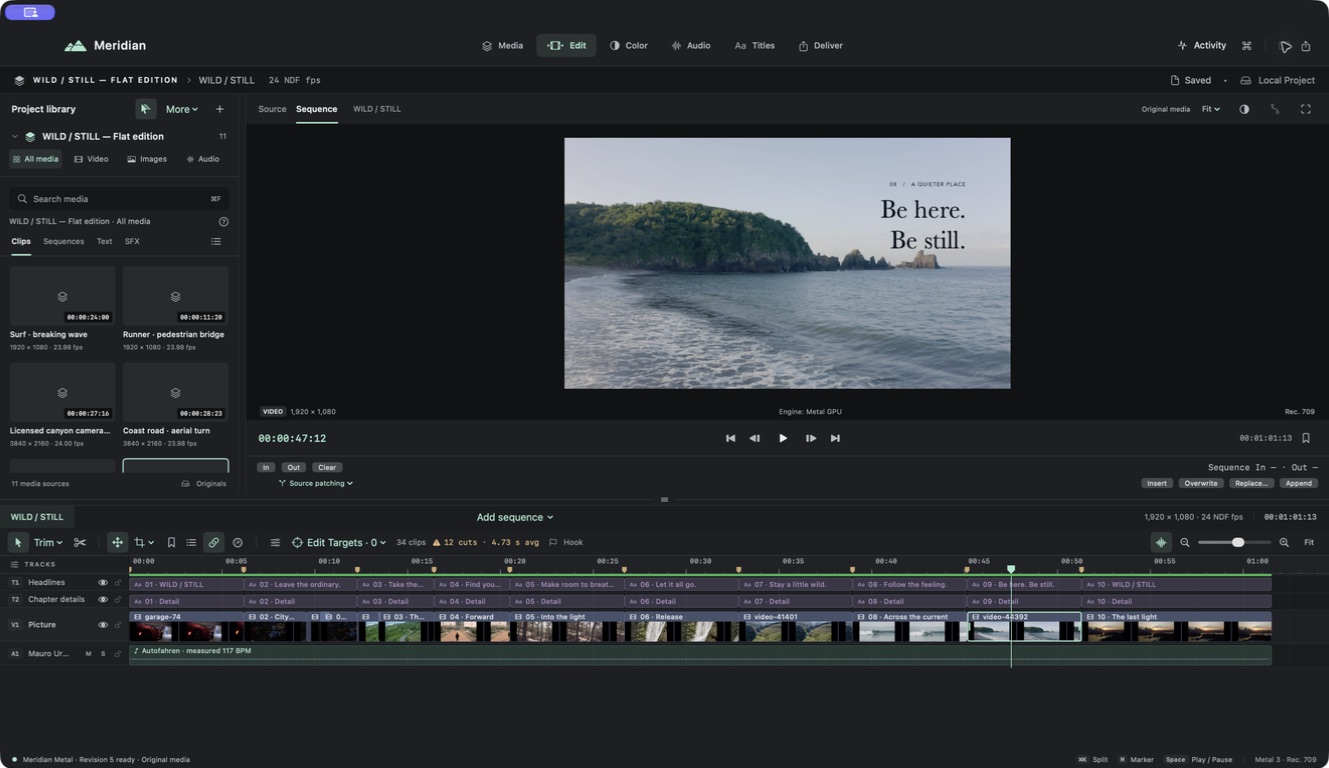
Use Timeline → Sequences → Sequence Settings to inspect the canvas and frame rate. For this exercise, keep one consistent landscape sequence rather than changing its format partway through the edit.
Choose the right placement
Append adds to the end. Insert (W) makes room at the playhead. Overwrite (D) replaces the destination range without making the same kind of room. These commands act on your marked source and current destination, so check source and sequence context before using them.
Watch the rough cut
Play from the beginning without stopping. Note moments that feel too long, redundant, or abrupt. Do not solve everything yet; in the next lesson, you will use trims and splits to improve the rhythm.
Save the project. If a placement was wrong, use Undo while the timeline is focused.